Timer
Is ClockTools The Best Online Timer For Your Task?
A transparent, feature-by-feature evaluation of the ClockTools online timer, including observed behavior, a decision matrix, and browser limitations.
By Vigneshwaran Vijayakumar, Developer and Publisher | | Reviewed under the ClockTools editorial policy
Table of contents
ClockTools is a strong fit for someone who wants an online countdown with quick presets, a custom name, repeat mode, fullscreen, sharing, and optional browser notifications on one screen. It is not automatically the best online timer for every job: it does not replace a count-up stopwatch, a fixed-time alarm, or a dedicated safety-critical timer. In a live check on August 27, 2026, choosing the 5 min preset changed the label to 5 min and the display to 05:00; switching Repeat Off on changed the visible state to Repeat On. That direct setup is the main advantage. The important caveat is browser behavior: keep the page open, test the alert on your device, and grant notifications only if you want them.
Is ClockTools The Best Online Timer For Your Task?
“Best” is useful only after the task is defined. The ClockTools online timer is a good match when you know the duration in advance and want to see time count down to zero. It is especially well suited to a repeated duration, a timer that other people need to see, or a setup you want to share.
It is a weaker match when the duration is unknown, the alert cannot be allowed to depend on a browser, or the routine needs a programmed series of different work and rest intervals. Those are different jobs, even if every tool involved happens to show time.
What Did The Live Check Confirm?
We checked the public timer page in Chrome on August 27, 2026. The purpose was to verify visible behavior, not to simulate every browser, operating system, or notification setting.
| Check | Action | Visible result | What the check established |
|---|---|---|---|
| Five-minute preset | Selected 5 min from Quick Presets | The name became 5 min and the display became 05:00 | A common duration can be prepared without typing minutes or seconds |
| Repeat control | Selected Repeat Off | The control changed to Repeat On | Repeat state is explicit before the countdown starts |
| Available setup | Read the main control area | Timer Name, Minutes, Seconds, Set, Start, Reset, Fullscreen, Presets, Share, and Notifications were visible | Core setup and optional controls are kept in the same working area |
| Preset range | Read Quick Presets and Named Timers | Quick choices ran from 30 seconds to 4 hours; named choices included 1, 5, and 10 minutes | The page covers both very short and long everyday countdowns |
We did not grant notification permission, enter fullscreen, distribute a share link, or wait through a full repeat cycle during this check. Those omissions are deliberate: the table reports only what was observed directly. Device-specific alert behavior should be tested on the device that will actually run the timer.
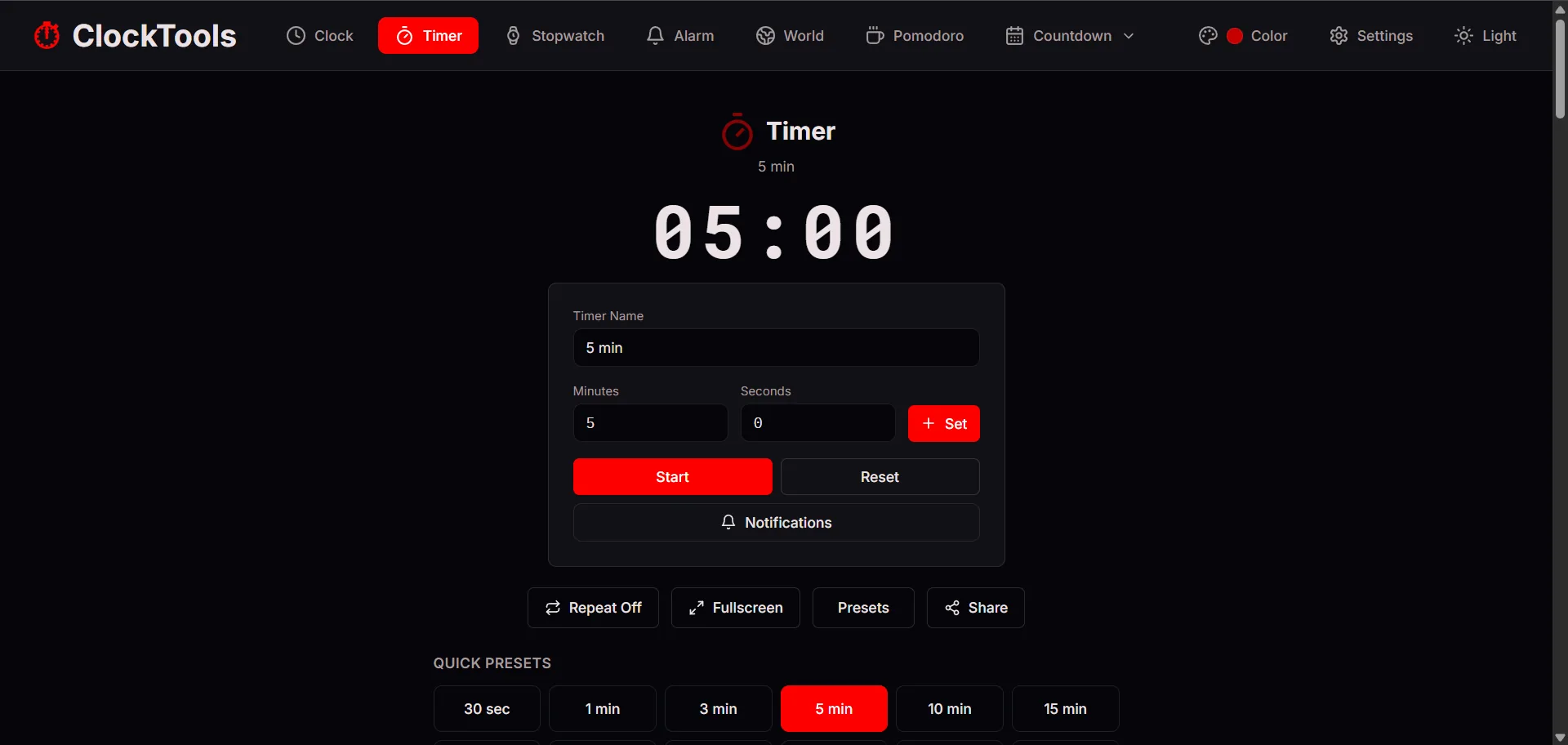
The prepared five-minute state keeps the countdown separate from the Start action. This interface screenshot documents the controls, not alert delivery on every device.
Which Features Earn Their Place?
The useful question is not whether a feature exists. It is whether the feature saves effort or prevents a mistake.
| Your requirement | ClockTools control | Fit | Caution |
|---|---|---|---|
| Start a common duration quickly | Quick Presets | Strong | Selecting a preset prepares the countdown; you still decide when to press Start |
| Use an uncommon duration | Minutes, Seconds, and Set | Strong | Check both fields before beginning |
| Recognize the timer at a glance | Timer Name | Strong | Avoid putting private information in a name you plan to share |
| Run the same duration again | Repeat Off/On | Strong for equal cycles | It is not a multi-stage interval program with different durations |
| Make the countdown easy to see across a room | Fullscreen | Useful when the display is shared | Browser fullscreen behavior can vary, so test it before a live session |
| Send the setup to another person | Share | Useful for coordination | Review the resulting setup before sending it |
| Receive a browser alert | Notifications | Useful after permission is granted | Permission, browser support, and device behavior can affect delivery |
This matrix is the reason ClockTools can be a better fit than a bare countdown for some tasks without being the universal answer. The controls serve distinct jobs; none of them makes browser timing infallible.
How Do Presets And Custom Time Compare?
Presets reduce input. ClockTools exposes 30 seconds; 1, 3, 5, 10, 15, 20, 30, and 45 minutes; and 1, 2, and 4 hours. Its named timer choices include Quick minute (1m), Focus (5m), and Break (10m). If one of those durations is exactly right, selecting it is simpler than entering values by hand.
Custom fields solve a different problem. If a presentation rehearsal must stop at 7 minutes 30 seconds, enter 7 under Minutes and 30 under Seconds, give the session a recognizable name, and select Set. A preset should never be chosen merely because it is nearby; the duration should come from the task.
For a five-minute job, the preset is the shortest route. The companion guide to using a 5 minute timer for bounded tasks shows how to define what happens inside that block instead of treating five minutes as a productivity slogan.
When Is Repeat Mode The Right Choice?
Repeat mode belongs to routines whose rounds are genuinely equal. A facilitator running several identical discussion turns, for example, may want the same countdown to restart. Turn repeat on before the first round, decide the number of rounds separately, and stop after the planned final cycle.
Leave repeat off when the timer marks a single deadline, when the next stage has a different duration, or when an automatic restart could be confusing. A five-minute activity followed by a ten-minute activity is not one repeated timer; it is two different countdowns. The Pomodoro timer is a better starting point when a routine intentionally alternates focus and break periods.
Our live check confirmed that the interface changed from Repeat Off to Repeat On. It did not verify a completed automatic restart, so this review does not present one as a measured result.
What Should You Know About Fullscreen, Sharing, And Notifications?
These three controls solve separate coordination problems:
- Fullscreen changes visibility. Use it when the countdown itself needs to be the dominant screen element.
- Share changes who can reproduce the setup. Use it when another person needs the same starting point.
- Notifications change how the browser can signal completion. Use them only after deciding that an operating-system-style alert is appropriate.
Browser notifications require the site to have permission. MDN's guide to the Notifications API also notes that support and behavior vary by browser and platform. Granting permission is therefore a setup step, not a guarantee that every device will alert in exactly the same way.
Hidden pages are another constraint. Browsers may throttle work in background tabs, as documented in the MDN Page Visibility API reference. For an important session, keep the timer page visible, prevent the device from sleeping if appropriate, raise the volume if an audible alert matters, and run a short test first. Do not use a browser timer as the sole safeguard for medication, laboratory work, safety procedures, or any other consequence-heavy deadline.
When Should You Use A Different ClockTools Tool?
Choose the tool by the time question you are asking.
If the question is “How long did this take?”, use the online stopwatch and count upward. If the question is “Remind me at 3:30 PM,” use the online alarm clock and anchor the reminder to a clock time. If the question is “How much time remains from five minutes?”, the countdown timer is the correct shape.
That simple classification prevents a common error: forcing a timer to do a stopwatch's job, then blaming the interface for making the result awkward.
The 30-Second Fit Check
Before pressing Start, confirm three things:
- Duration: Do you know how much time should pass?
- Finish signal: Will seeing zero, hearing the page, or receiving an allowed notification be sufficient?
- Environment: Can the browser stay open and visible enough for this task?
If all three answers are yes, set the duration and begin. If any answer is no, change the tool or the setup before the countdown starts. That is a more reliable definition of the best online timer than choosing whichever page advertises the longest feature list.
Frequently Asked Questions
Is ClockTools The Best Online Timer For Every Task?
No. ClockTools is a strong fit for known-duration countdowns that benefit from presets, repeat mode, fullscreen, sharing, or optional notifications. Use a stopwatch for unknown durations, an alarm for a clock-time reminder, and a dedicated safety process for consequence-heavy timing.
Does Selecting The 5 Minute Preset Start The Timer Automatically?
No. In our August 27, 2026 live check, selecting 5 min prepared the timer at 05:00 and left the Start control available. You decide when the countdown begins.
What Does Repeat On Mean On The ClockTools Timer?
The timer page describes repeat mode as restarting the same countdown automatically. It suits equal rounds, but not a routine whose stages require different durations. Our check verified the visible Off-to-On state change, not a completed repeat cycle.
Will Browser Notifications Work Without Permission?
No. The browser must allow notifications for the site, and support can vary by browser and device. Test a short countdown on the device you plan to use before relying on an alert.
Should I Keep The Online Timer Tab Open?
Yes, especially when the countdown matters. Browsers and mobile operating systems can limit background activity, and a sleeping device may change what you see or hear.
When Is A Stopwatch Better Than An Online Timer?
Use a stopwatch when you want to discover how long an activity takes. Use a timer when you already know how much time should pass before the activity stops or changes.

About The Author
Vigneshwaran Vijayakumar
Founder, Developer and Publisher of ClockTools | Digital Marketing Manager | India
Vigneshwaran is an engineer with decades of technical experience, including professional work as a Digital Marketing Manager in Dubai. His work connects data analysis, search engine optimization, conversion-rate optimization, content systems, visual production, and applied AI and machine learning. At ClockTools, he turns that multidisciplinary experience into focused browser utilities and practical, source-aware guides.