Step 1
Set the tempo and rhythm
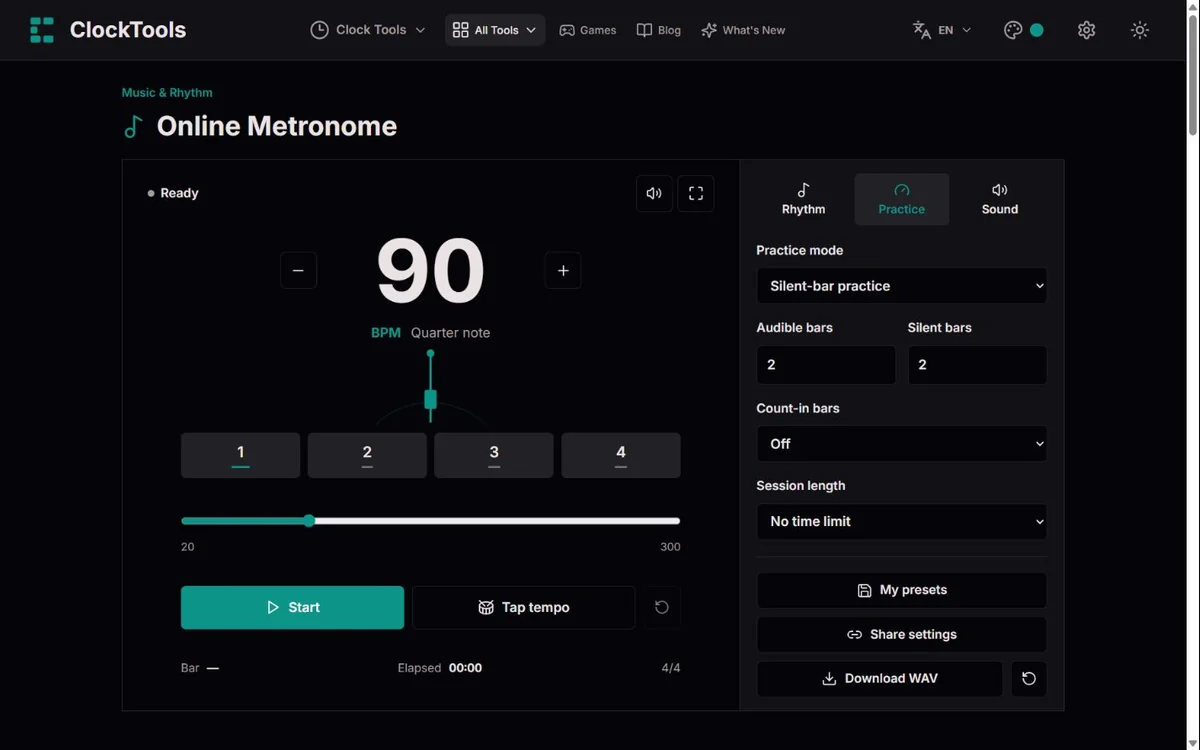
Enter a BPM or tap the tempo you hear. Choose the time signature and beat unit, then set the accents and clicks per beat.
Choose a beat unit that matches the music before interpreting BPM.
Choose your beat, start a short practice session, then keep the setup that works for you.
Enter a BPM or tap the tempo you hear. Choose the time signature and beat unit, then set the accents and clicks per beat.
Press Start and play along at a comfortable pace. For a focused exercise, add a count-in, a session limit, silent bars or a gradual tempo change.
Stop to see your elapsed time and final tempo. Save a named preset for next time, share the settings or export a short WAV click track.
Compare dotted-quarter 60 BPM and eighth-note 180 BPM in 6/8. Both make a two-second bar, but the selected pulse and accents differ.
Set two subdivisions and 66% swing. The second event falls about two thirds through the beat rather than halfway through it.
Export a short WAV for a rehearsal device. Verify mute and volume first; the file is a click track, not a recording of your instrument.
A number such as 60 is incomplete without the beat unit. At quarter-note 60, one quarter note lasts a second. At dotted-quarter 60, three eighth notes occupy that second. In 6/8, two dotted-quarter pulses therefore make a two-second bar.
A mechanical metronome made regular pulse rates visible on a scale; numerical markings gave composers another way to communicate tempo alongside expressive words. Beethoven-Haus documents Beethoven’s contact with Mälzel and his use of the metronome. That history does not make a numerical setting a complete performance instruction.
Use the marking as a reference, then consider phrasing, articulation and the exercise you are practising. A metronome does not evaluate musical expression or establish the correct tempo for every edition or performer. The collection provides a concrete historical connection rather than a claim that a machine can resolve interpretation. Beethoven-Haus on Mälzel and the metronome.
♩ = 60One quarter note per second♩. = 60One dotted quarter per second2 × 1 s = 2 sA 6/8 bar with two main pulsesClicks are scheduled ahead against audio time. The moving display follows the scheduled events; it does not trigger the sound on each animation frame. A busy screen can repaint late without meaning that every scheduled click has the same delay.
Output latency still exists between scheduled audio and the sound reaching your ears. Wireless headphones, audio drivers and speaker paths can change that delay. A visual pulse and a heard click are not a laboratory measurement of end-to-end latency.
If the audio context is suspended, the session stops rather than asserting that uninterrupted practice continued. Export uses the same rhythm rules but writes samples into a local file, so it avoids live scheduling delays while retaining the chosen volume, mute and practice pattern. The audio specification distinguishes context time from output latency. Web Audio timing and latency.
Beat duration is 60 ÷ BPM seconds. Meter and beat unit determine pulses per bar; subdivisions and swing position events within each pulse. The WAV exporter snapshots settings before yielding and discards canceled or stale work before creating a download.
Scheduled audio is not a guarantee of speaker timing on every device. Sleep, suspended audio and output latency can interrupt practice. Export is bounded to 5–120 seconds and includes mute and volume; a muted setup produces a silent file.
Report tempo, meter, beat unit, subdivisions, practice mode and browser with a reproducible example. Do not send private recordings. Compare numerical event positions separately from subjective phrasing or hardware latency.
Yes. BPM counts the selected beat unit. A dotted quarter and a quarter are different note values, even at the same numerical BPM.
Yes. Closing the export dialog invalidates pending work before the download is created. An already downloaded file remains on your device.
No. Display rendering and scheduled audio have different timing paths. Hardware output latency also requires a separate measurement.
A metronome supplies a regular reference pulse while you play, sing or rehearse. Here you can enter 20–300 BPM, make one-BPM adjustments or use tap tempo.
The main display follows the current tempo during training. The visual beat markers keep counting even in silent practice bars, and the optional pendulum offers a quieter visual reference.
Fullscreen leaves the practice display in focus without changing your settings.
Tap at least three evenly spaced beats to obtain an estimate, then continue for several more taps before relying on the number. Tap the note value selected as the beat unit: tapping eighth notes while quarter notes are selected can double the BPM you intended. The tool estimates from button-press intervals, not a microphone or your performance. It uses recent taps and filters some outlying intervals, but cannot decide whether you meant the beat, a subdivision or an expressive variation. Reset taps to start cleanly; a pause longer than 3.2 seconds also begins a new sequence. At 20 BPM, beats are three seconds apart, so a deliberate slow tap is still usable.
Stop before changing meter, beat unit, accents or practice mode: those controls are locked during playback and startup. In steady and silent-bar practice, you can adjust BPM while playing; during a running trainer, tempo controls are locked so the programmed steps remain in charge. Sound, volume and global mute remain adjustable. Try wood, click or bell at a modest volume that stays audible alongside your instrument without covering it. The pendulum changes the visual reference, not the rhythm being played.
The numerator tells you how many written note units are in a bar; the denominator identifies that unit. BPM needs a separate beat unit.
In 4/4 at quarter-note = 120, four pulses fill a two-second bar. In 6/8 at dotted-quarter = 60, two main pulses fill a two-second bar, with three eighth notes inside each pulse.
Choosing eighth-note = 60 instead makes that 6/8 bar six seconds long. Always match the selected unit to your score or teacher’s instruction.
For 7/8, eighth-note clicks and editable accents let you mark groups such as 2+2+3.
♩. = 60 BPM → 2 × (60 ÷ 60) = 2 s
One click per beat leaves space to feel the pulse. Two, three or four clicks per selected beat make the gaps easier to hear; three means an even triplet within that beat.
Each beat can be accented, regular or silent. Silencing a beat also silences its subdivisions.
Swing moves the second of two clicks later: 50% is even, and 67% is close to a 2:1 long–short division. Swing is available only with two clicks per beat.
Secondary beats add a differently pitched pulse distributed evenly across the same bar, useful for exploring ratios such as three against four; they are not a second independent tempo.
For a concrete three-against-four exercise, choose 4/4, quarter-note 120 BPM, one click per beat and three secondary beats. The main clicks fall at 0, 0.5, 1 and 1.5 seconds within each two-second bar; the secondary clicks fall at 0, about 0.667 and about 1.333 seconds. Both restart together at the next bar. This is not the same as three subdivisions on every main beat. Muting an individual main beat removes that beat and its subdivisions, but the secondary track can still sound there. Turn secondary beats off for a main-track-only exercise; use global mute or silent-bar practice when both tracks must be silent.
Steady tempo is the starting point. The tempo trainer increases or decreases BPM by your chosen step after a fixed number of complete bars, stopping the change at the target without overshooting it.
Silent-bar practice alternates audible and silent bars so you can check whether your internal pulse holds up. A one- or two-bar count-in plays before the practice clock begins.
The optional session limit stops the sound and opens a summary. Start again for a fresh session; this is not a recorded performance or an assessment of your playing.
With the chord-change setup, start at 60 BPM in 4/4, target 80 BPM, step 5, every four bars. The first four bars stay at 60, the next four at 65, then four at 70 and four at 75. After 16 completed practice bars, the trainer reaches 80 and continues there; reaching the target does not stop the session. At these settings, those first 16 bars take about 57.3 seconds, without a count-in. A one-minute session therefore leaves only a short time at 80. Allow a longer session to practise at the target, or stop and restart more slowly if the movement becomes uneven. A target below the starting BPM runs the same stepping process downward.
Count-in bars prepare your entrance; they are not counted as practice time. In 6/8 at dotted-quarter 60 BPM, one count-in bar lasts two seconds. A two-minute session then allows 120 seconds of practice after that preparation, rather than 118. Silent bars do count toward practice time because they belong to the exercise. If a session limit ends before a trainer reaches its target, that is not a missing tempo step: increase the limit or reduce the number of bars between steps. The summary reports elapsed time and final tempo, not whether your notes were on time. The count-in uses one cue per selected beat unit, with the first beat of each bar accented. It does not use the practice subdivisions, swing, per-beat accent or mute settings, or secondary pulses. Volume and global mute still apply.
For guitar, start a chord change slowly and make each change land on a beat before increasing the tempo. For piano, rehearse a difficult passage with even subdivisions, then return to one click per beat.
For drums, accent the first beat, establish a comfortable groove and alternate two audible bars with two silent bars. For singing, use a count-in before an entrance and choose a sound that is easy to hear without covering your voice.
These are starting ideas, not prescribed tempos: choose a pace where the movement and phrasing remain controlled.
These are example starting points, not prescribed tempos. Load a setup, adjust it to your ability and press Start when you are ready.
Start a guitar chord change at 60 BPM. The trainer adds 5 BPM every four bars, up to 80 BPM; slow down if your movement loses control.
At 72 BPM, two clicks per beat make the halfway point audible. Rehearse a short passage, then return to one click per beat as it becomes secure.
At 90 BPM, alternate two audible bars with two silent ones. Keep the drum pattern going and listen for whether you reconnect with the first beat.
Use a one-bar count-in before singing. At dotted-quarter = 60 BPM, each 6/8 bar has two main beats; finish with a two-minute session summary.
Save named setups locally rather than rebuilding a rhythm for every session. A shared link stores public settings in its URL fragment and never starts sound automatically.
It does not include saved preset names or session history. WAV export creates a 5–120-second, 44.1 kHz mono PCM click track from the same rhythm rules used by the live tool.
Count-in, training, silent bars, swing and secondary beats are included. The chosen export length replaces the live session limit.
Muted audio or zero volume produces silence, so check those controls before exporting.
Export length is the duration of the whole WAV, including the count-in, rather than a promise of that many seconds after your entrance. For the same 6/8 dotted-quarter 60 BPM setup, a five-second export with one count-in bar contains two seconds of preparation and three seconds of practice. Two count-in bars leave only one second of practice in that file. A short export can therefore finish before a trainer changes tempo or before a silent-bar cycle becomes audible again. Choose enough seconds for the part of the pattern you need, then listen to the file before taking it to rehearsal.
One selected beat lasts 60 ÷ BPM seconds. Bar length is that interval multiplied by the number of selected beats in the bar; a dotted-quarter beat represents three eighth notes.
The audio scheduler schedules clicks against Web Audio time, rather than asking a screen animation to trigger every sound. Tests cover settings bounds, subdivision offsets, swing, count-in, silent-bar cycles, ascending and descending tempo steps, tap estimates and WAV headers.
Audio output and display still depend on your device. Bluetooth can add latency, and a suspended browser or sleeping phone can stop playback.
Keep the page open; an interruption stops the session rather than pretending it continued reliably.
When a click seems late, first separate the listening path from the display: reduce busy background activity and compare built-in speakers or wired headphones with the wireless device you were using. Web Audio distinguishes scheduled audio time from output latency; a late animation is not by itself evidence that the click spacing changed. There is no latency-calibration control here, so changing BPM to compensate for a delay also changes the rhythm. If playback reports an interruption, return to the page and start a new session. For rehearsal without a live browser, use a checked WAV file, while allowing for the playback device's own output delay.
The rhythm engine, tap calculations and WAV rendering run in your browser. No microphone permission, account or software installation is required.
Presets use this browser’s local storage and disappear if that storage is cleared. Ordinary site hosting and analytics remain subject to our Privacy Policy.
To report a problem, include your browser, device, tempo, time signature, beat unit and practice settings, along with what you heard or saw. Do not send private recordings.
Timing, export and translation defects should receive a reproducible check and a relevant regression test.
Yes. Tempo controls, tap tempo, practice modes, presets and WAV export are free to use without an account.
Browsers normally require a user gesture before playing audio. Press Start, check the volume and mute controls, and make sure your device and browser tab are not muted.
It depends on the beat unit. Dotted-quarter BPM counts two main beats in a 6/8 bar; eighth-note BPM counts six. This tool displays the chosen unit explicitly.
Not reliably on every device. Browsers may suspend audio when a phone locks or a tab is interrupted. Keep the page open and do not rely on it for unattended playback.
Yes. Choose silent-bar practice and set the audible and silent bar counts. The visual pulse continues while the scheduled clicks are silent.
Yes. Download a WAV click track lasting 5–120 seconds. It includes the current rhythm and practice pattern, but not your instrument or microphone audio.
Methodology and limitations · Report a timing or translation error