Alarm Tools
Will an Online Alarm Work If Your Computer Sleeps?
A state-by-state guide to browser alarm reliability, background throttling, notifications, sound, and safer backup choices.
By Vigneshwaran Vijayakumar, Developer and Publisher | | Reviewed under the ClockTools editorial policy
Table of contents
An online alarm is not a reliable way to wake a sleeping or powered-off computer. If the alarm tab is closed, its code is gone. If the device sleeps, the operating system can suspend the browser before the page checks the time or plays sound. A background tab may still ring while the device stays awake, but browser timer throttling means it should be tested rather than assumed.
Use the ClockTools online alarm clock for desk-side reminders when you can keep the device awake and the page open. For a flight, medication, an exam, or a morning wake-up, use a native phone or operating-system alarm and set a second independent alert.
What survives in each browser state?
The important distinction is not simply “online or offline.” It is whether the page still exists and whether the operating system is giving it execution time.
| Device and page state | Can the page check the clock? | Can sound or vibration happen? | Practical verdict |
|---|---|---|---|
| Active tab, device awake | Normally yes | Normally yes after user interaction | Appropriate for an ordinary reminder |
| Background tab, device awake | Usually, but timer work may be throttled | Possible, subject to browser and audio policy | Test it and keep a backup for important alerts |
| Tab or browser closed | No | No | The online alarm cannot run |
| Device asleep or suspended | Not reliably | Not reliably | Use a native alarm instead |
| Device powered off or restarted | No | No | Use a native alarm with persistent scheduling |
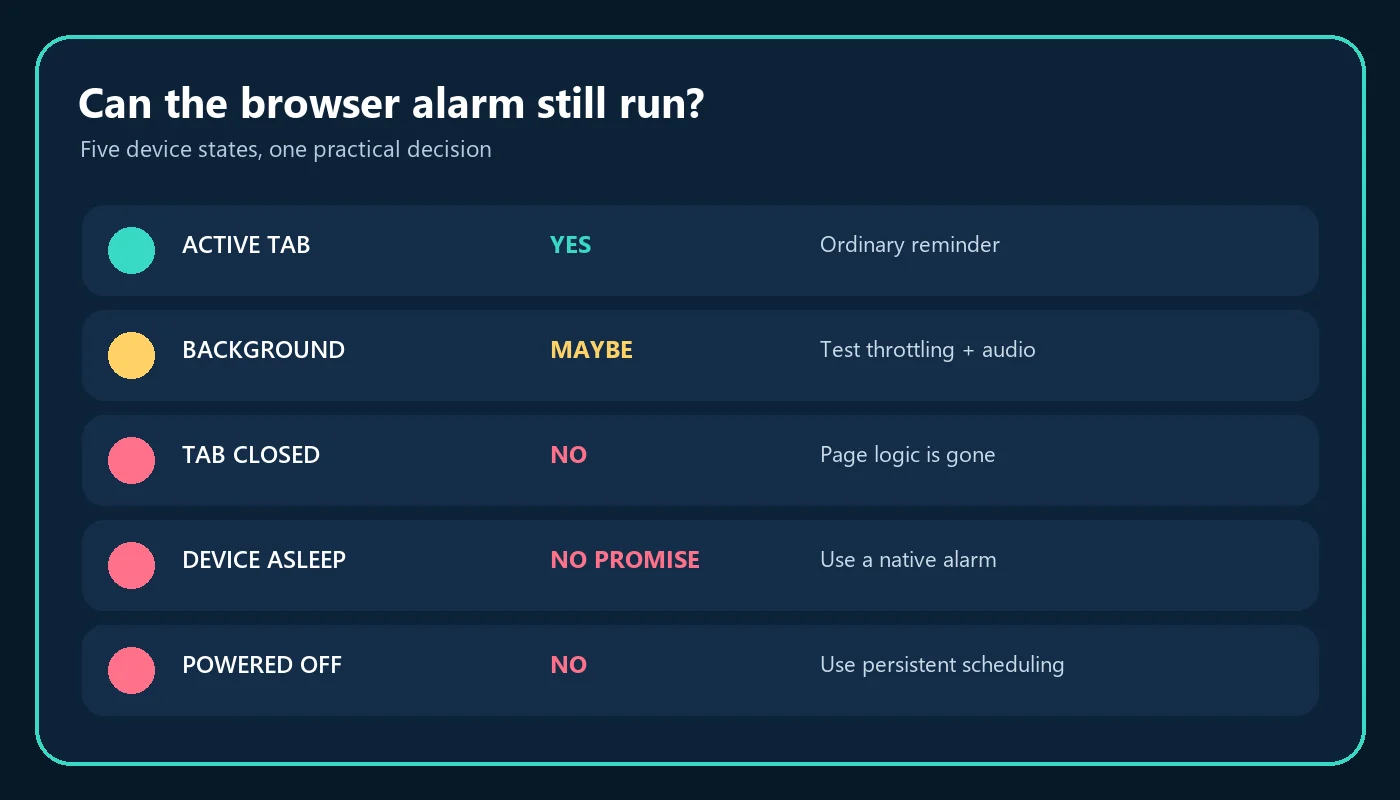
This matrix is deliberately conservative. A lock screen is not identical across phones, laptops, browsers, and battery modes. If a device remains awake behind its lock screen, a page may continue; if the operating system suspends it, the page cannot promise an alert. Test the exact state you intend to use.
How does ClockTools decide that an alarm is due?
The current ClockTools implementation reads the device's local time once per second. It formats the current hour and minute, compares that value with each enabled alarm, and uses a date-and-minute trigger key to avoid firing the same alarm repeatedly during that minute. This is a wall-clock check, not a remote wake-up service.
When an alarm becomes due, the page can show a browser notification if permission is already granted, play the selected sound at the chosen volume, and request vibration where the browser supports it. The ringing sound repeats until you stop or snooze it. Snooze moves that alarm to a later clock time inside the open page.
Those observations explain both the tool's strength and its boundary. It can recover from a small scheduling delay while the page is alive because it checks the current displayed minute. It cannot execute after the page has been closed, and it cannot force a sleeping operating system to resume the browser.
If you want a duration rather than a clock time, use the online timer. A timer avoids choosing an hour and minute, but it has the same basic browser-state limits.
Why can a background alarm arrive late?
Browsers reduce background work to save power. The MDN Page Visibility guide documents that inactive tabs may have timer budgets and throttling. The MDN setTimeout reference also explains that a timeout can run later than requested when a tab is inactive or the main thread is busy.
That does not mean every hidden tab will miss every alarm. It means “the tab is open” is necessary but not sufficient for a strict timing guarantee. Battery saver, mobile tab unloading, a laptop lid, browser memory management, audio output, and notification permissions can each change the result.
Sound has another gate. Browsers commonly require a user gesture before allowing audible playback. Previewing the selected alarm tone is a useful way to establish that interaction and catch a muted tab, disconnected speaker, low system volume, or wrong audio output. The MDN autoplay guide describes why automatic audio may be blocked even when page code runs.
Notifications are an extra channel, not a wake guarantee. Permission must be granted, and browser support varies by platform. MDN's Notifications API guide notes that permission should be requested from a user action and that mobile handling differs from desktop handling.
What should you test before trusting a browser alarm?
Run this preflight at least two minutes before the real event:
- Open ClockTools, set a labeled alarm two minutes ahead, choose the intended sound, and use the sound preview.
- Confirm the tab is not muted, system volume is audible, and the correct headphones or speakers are selected.
- Enable notifications only if you want a second visible channel; do not treat permission as proof that sound will play.
- Put the page into the same state you plan to use: background tab, minimized window, or locked but intentionally awake device.
- Verify that the alert arrives, then set the real alarm and an independent native backup if the consequence of missing it matters.
Change one condition at a time if the test fails. First keep the tab active. Next remove battery saver. Then retest the audio output and notification permission. This turns a vague “alarm did not work” report into a specific page, power, or output problem.
A shared link can reproduce time, label, sound, snooze, and volume settings, but the recipient must still open the link and keep the resulting page in a runnable state. Sharing configuration does not transfer a native scheduled alarm to another device.
Which alarm belongs to a critical event?
Use a browser alarm when the device is already part of the task: a meeting reminder at a desk, a classroom transition on a display, or a cue during a supervised session. Keep it visible enough that you can notice an error before the deadline.
Use a native alarm when the device may sleep, restart, lose the browser tab, or spend a long time locked. Native operating-system alarms have scheduling privileges a normal webpage does not. For a safety-sensitive or irreversible deadline, use two independent devices or channels and check both in advance.
The choice is about failure cost, not feature count. ClockTools gives useful labels, sounds, volume, snooze, notifications, vibration, and shareable setup. None of those controls converts an open webpage into a system alarm service. Treat the browser page as a convenient active-session tool and choose a stronger scheduler whenever the device state will be outside your control.
Frequently Asked Questions
Will an online alarm ring if I close the tab?
No. Closing the tab removes the page and its alarm logic. Keep the ClockTools alarm tab open, or use a native alarm when the alert must survive a closed browser.
Can a background tab still ring an alarm?
It may, while the browser and device remain awake, but browsers can throttle background timers and delay execution. Test the exact browser and power settings before relying on it.
Do browser notifications make an online alarm work during sleep?
No. Notification permission can add an alert while the page is running, but it does not guarantee that a sleeping or powered-off computer will wake and execute the page.
Does ClockTools save alarms after a restart?
Do not treat the browser alarm as restart-safe. Reopen the page, confirm the alarm is enabled, preview the sound, and set a native backup for important events.
Why did my alarm appear late when I returned to the tab?
The browser or operating system may have throttled or suspended the page. A delayed callback can run only after the page receives execution time again.
What should I use for a flight, medication, or wake-up alarm?
Use a native phone or operating-system alarm with a tested backup. A browser alarm is best for lower-stakes reminders while the device is awake and the page remains open.

About The Author
Vigneshwaran Vijayakumar
Founder, Developer and Publisher of ClockTools | Digital Marketing Manager | India
Vigneshwaran is an engineer with decades of technical experience, including professional work as a Digital Marketing Manager in Dubai. His work connects data analysis, search engine optimization, conversion-rate optimization, content systems, visual production, and applied AI and machine learning. At ClockTools, he turns that multidisciplinary experience into focused browser utilities and practical, source-aware guides.